
Get Your Free Estimate Now
"*" indicates required fields






Moving office IT equipment with minimal downtime requires planning long before the moving truck arrives. Delivering 30 computers on Saturday means little if employees cannot access their files, answer customer calls or process payments on Monday morning.
The moving schedule needs to account for network installation, equipment shutdown, transportation and technical testing before employees return. Our month-by-month office relocation checklist covers the wider business move.
Who Is Responsible for What During an Office IT Move?
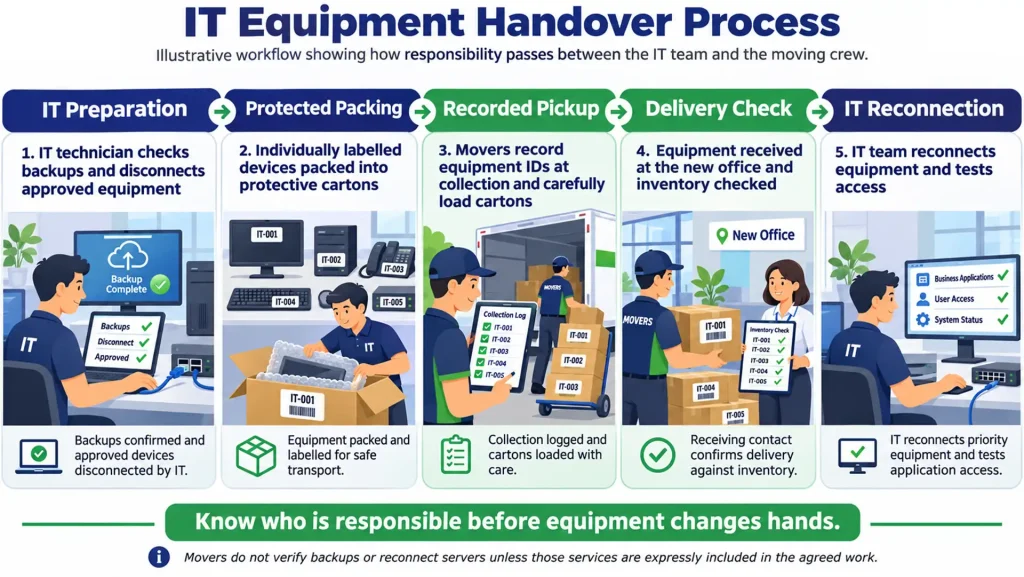
Before booking your movers, agree on who disconnects the equipment, who packs it and who receives it at the new office. Assign a named contact from each team so the moving crew knows who to approach if equipment is not ready for collection.
| Responsible party | Responsibilities |
|---|---|
| IT team | Verify backups, record configurations, shut down systems, disconnect equipment and restore services. |
| Commercial movers | Pack, protect, transport and place equipment according to the agreed scope and destination plan. |
| Cabling contractor | Install, label and test network connections. |
| Building management | Arrange access to telecommunications rooms, freight elevators and loading docks. |
| Business manager | Approve the relocation schedule and confirm when operations can resume. |
When Should IT Equipment Be Handed Over to the Movers?
Before the crew begins packing, the IT lead should identify which devices are ready for collection and which must remain connected until the business closes.
If a server is still running when the movers arrive, leave it in place until IT authorizes its removal. The moving crew should never have to decide which live systems can be disconnected.
Office IT Relocation Checklist: What to Complete Before Moving Day
Finalize your equipment inventory, verify data recovery and confirm which devices are being relocated before your movers prepare the packing and loading plan.
Create an IT Equipment Inventory
Record each device’s asset number, destination, existing condition and any special handling requirements.
| Equipment ID | Device | Destination | Pre-move condition | Handling requirements |
|---|---|---|---|---|
| IT-001 | Monitor | Floor 2, Desk 14 | No visible damage | Screen protection |
| IT-002 | Desktop | Floor 2, Desk 14 | Casing scratch | Cushioned packaging |
| IT-003 | Server | Server room | Checked by IT | Specialist assessment |
| IT-004 | Network switch | Server room | Checked by IT | Priority delivery |
Your inventory should also include serial numbers and delivery confirmation fields. Documenting existing damage before packing makes it easier to resolve discrepancies after delivery.
Verify Backups Before Disconnecting Equipment
Before moving day, your IT team should verify that backed-up data can be restored, including files stored locally on employee computers.
The Canadian Centre for Cyber Security recommends regularly testing backups to confirm that data can be recovered.
Schedule the final backup after the last business transactions and document updates, before shutting down systems.
Decide What to Move, Replace or Retire
Separate equipment being relocated from devices scheduled for replacement, recycling or lease return.
Your IT team should securely erase data from retired equipment before disposal, following applicable retention requirements. Include leased printers, photocopiers, and other hardware in the moving inventory only once relocation arrangements have been confirmed with the provider.
Network Cabling in a New Office: What Must Be Ready Before Equipment Arrives?
Schedule your cabling contractor before the movers arrive so technicians can access walls, floor outlets and cable pathways without working around office furniture.
Confirm Your Internet Connection Is Working
An installation appointment does not mean your internet connection is ready. Before moving day, your IT provider should test access to cloud applications, remote systems and internet-based phone services.
Coordinate Cabling With Your Office Layout
Give the contractor your final floor plan showing desks, printers, meeting rooms and wireless access points.
If Desk 14 requires two wired connections, both outlets should carry labels matching their ports in the telecommunications room. The contractor’s connection records and cable test results will help your IT team identify faults after installation.
In Toronto and Ottawa office towers, confirm access to telecommunications rooms and building risers separately from your moving crew’s freight elevator booking.
Prepare the New Server Room
Your IT team should verify the power supply, backup power, cooling, rack space and network connections. The moving crew also needs a clear delivery route that can accommodate the equipment.
Finish any dust-producing construction work before sensitive hardware arrives. Obtain approval from your IT lead before scheduling server delivery.
Moving Computers During an Office Move: How to Pack, Label and Transport Workstations
A misplaced monitor or missing power adapter can delay an employee’s return to work. Pack each workstation as a complete set, with labels matching its destination desk.
Label Equipment by Its Destination Workstation
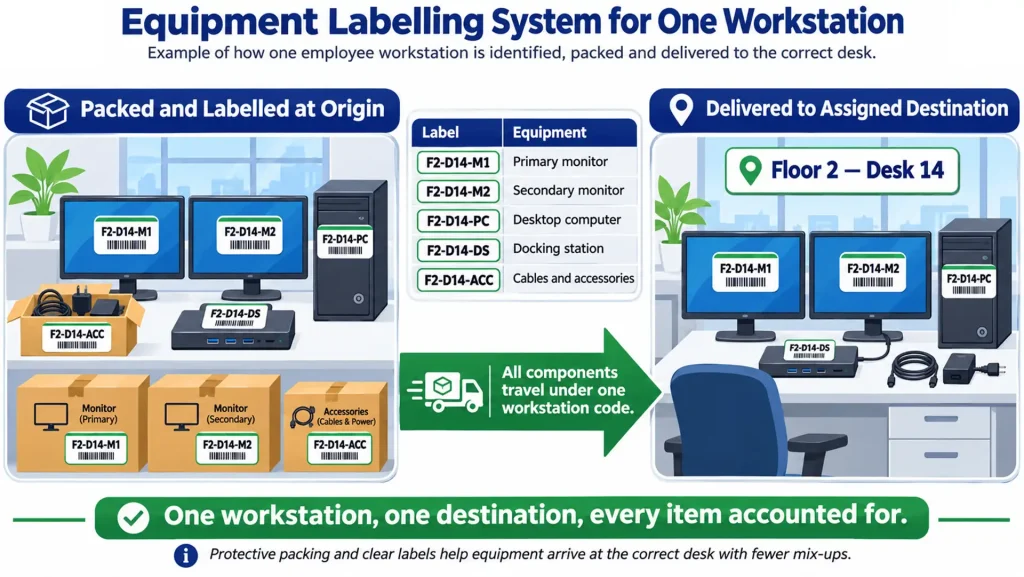
Department names alone leave movers sorting equipment across multiple desks. Use a code that identifies the floor, desk, and device.
For example, equipment assigned to Floor 2, Desk 14 could be labelled as follows:
| Label | Equipment |
|---|---|
| F2-D14-M1 | Primary monitor |
| F2-D14-M2 | Secondary monitor |
| F2-D14-PC | Desktop computer |
| F2-D14-DS | Docking station |
| F2-D14-ACC | Cables and accessories |
Match these labels to the destination floor plan. Use room numbers for shared equipment, such as meeting-room displays.
Protect Monitors, Computers and Docking Stations
Choose packing materials based on the equipment’s construction and the manufacturer’s requirements.
| Equipment | Recommended protection |
|---|---|
| Monitors | Monitor cartons with protective inserts to prevent screen pressure |
| Desktop computers | Rigid cartons or padded equipment crates |
| Docking stations | Individual cushioned packaging |
| Keyboards and mice | Labelled accessory cartons |
| Exposed electronic components | Electrostatic discharge (ESD) shielding bags or suitable ESD-shielding containers |
| Network switches | Manufacturer-approved or suitably cushioned packaging |
Fully enclosed computers generally require protection against impact and movement. Exposed circuit boards and static-sensitive components require suitable ESD-protective packaging. Ordinary plastic moving crates do not provide guaranteed static protection. Follow the EOS/ESD Association’s packaging guidance for these components.
Keep Power Adapters and Cables With Their Devices
Pack compatible power adapters, display cables and peripherals together. Label both ends of cables where specific connections need to be restored.
Avoid combining accessories from different workstations, particularly where employees use different equipment models.
Secure IT Equipment During Transportation
Keep packed electronics separate from heavy office furniture. Secure cartons and crates against movement, avoid stacking beyond their load limits and prevent pressure on monitor screens.
Document any packaging damage noticed during unloading before handing the equipment back to the IT team.
Server Relocation: When Does IT Equipment Require Specialist Handling?
Standard workstations and peripherals can usually be moved within an agreed commercial moving scope. On-site servers, populated racks and sensitive network hardware may require specialist assessment before transportation.
Relocating an Office With Cloud-Based Systems
Even without on-site servers, your business may rely on firewalls, network switches and wireless access points. Ask your IT team to identify equipment tied to existing network configurations or security settings before replacing or relocating it.
Moving On-Premises Servers and Network Equipment
A single server may support accounting software, shared files and other applications across several departments.
Your IT provider should determine how the server needs to be packed, which manufacturer transport requirements apply and whether any components need separate handling. A technician should be available to receive the equipment at the new office.
When Server Racks Require Specialist Transportation
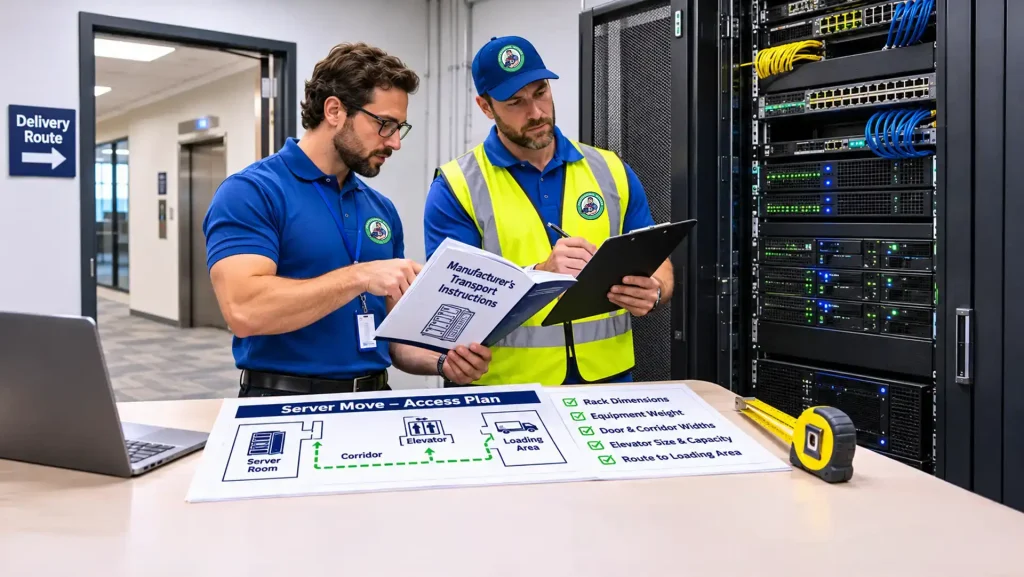
A fully loaded server rack can become unstable during movement, particularly on ramps or uneven surfaces.
IBM’s rack relocation guidance for certain server racks recommends removing equipment from upper positions to improve stability.
Before requesting a moving estimate, provide:
- Rack dimensions and loaded weight.
- Equipment models and transport restrictions.
- Doorway widths and freight elevator weight limits.
- Steps, ramps and loading dock conditions.
Built-in wheels do not make a server rack suitable for truck transportation.
For populated racks or hardware with manufacturer-specific transport requirements, arrange a specialist assessment before booking. Our data centre relocation services explain the physical handling arrangements and responsibilities that remain with your IT team.
Protecting Sensitive IT Equipment and Business Data During Transit
Use a signed handover record for servers, backup drives and other devices containing sensitive information. Record the equipment ID, collection and delivery times, and the names of the people releasing and receiving it.
Restrict access to these devices throughout transportation.
Before transportation, ask your IT team to confirm that devices containing sensitive data are encrypted where appropriate.
Businesses subject to Canada’s Personal Information Protection and Electronic Documents Act (PIPEDA) must protect personal information according to its sensitivity. The Office of the Privacy Commissioner of Canada outlines the physical, organizational and technological safeguards businesses should consider.
Moving IT Equipment During an Ontario Winter
Condensation can form inside cold electronic equipment when it enters a heated office.
Follow the manufacturer’s acclimatization instructions before powering on devices. Allow for this waiting period when scheduling IT technicians.
During a commercial relocation in winter, keep sensitive equipment protected from snow and moisture, and minimize its exposure to freezing temperatures during loading and unloading.
How to Move Office IT Equipment Over a Weekend to Minimize Downtime
Reserve part of Sunday for troubleshooting rather than scheduling technical installation right up to Monday morning.
Consider an Ontario business moving 30 workstations, one server, shared printers and two meeting rooms. An illustrative relocation schedule could look like this:
| Day | Scheduled work |
|---|---|
| Before Friday | Confirm destination readiness and equipment inventory. |
| Friday evening | Complete final backups, shut down systems and release equipment. |
| Saturday | Transport and place equipment in the agreed installation order. |
| Sunday morning | Reconnect priority systems and employee workstations. |
| Sunday afternoon | Test business applications and resolve outstanding issues. |
| Monday | Resume operations with IT support available. |
Prioritize Equipment Based on Business Needs
If payroll is due on Monday, restore the accounting department’s systems before setting up meeting-room equipment.
Your movers and IT team should agree on delivery priorities based on equipment accessibility, specialist handling requirements and installation needs.
Plan IT Equipment Delivery Around Installation Priorities
| IT restoration priority | Moving consideration |
|---|---|
| Network equipment | Accessible for installation |
| Servers & critical hardware | Specialist handling and IT clearance |
| Priority workstations | Labelled sets delivered to assigned desks |
| Shared office equipment | Department and room requirements |
| Non-essential equipment | Flexible delivery timing |
Agree on IT installation priorities before planning the loading and delivery sequence. The actual delivery order depends on equipment, access, and handling requirements.
Set a Sunday Reopening Deadline
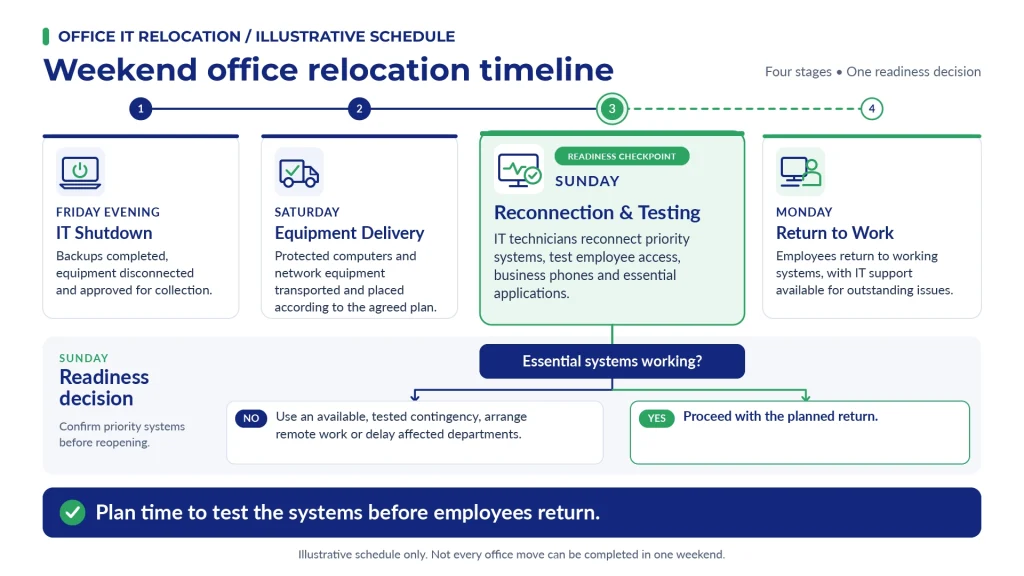
Set a decision deadline early enough on Sunday to notify employees of any changes to Monday’s working arrangements.
If essential systems are still unavailable, activate a tested backup internet connection, arrange remote working for affected employees or reopen departments in phases.
How to Confirm Your Office IT Systems Are Ready for the First Working Day
Before reopening, ask department representatives to test the tasks they perform during a normal workday rather than relying solely on IT connectivity checks.
| System | Readiness test |
|---|---|
| Employee workstations | Log in and access daily applications. |
| Accounting software | Open records and complete an approved test transaction. |
| Shared storage | Open and save files using assigned permissions. |
| Telephone systems | Test incoming calls, outgoing calls and call transfers. |
| Printers and scanners | Print and scan documents from employee workstations. |
| Meeting rooms | Test video calls, microphones and screen sharing. |
Any outstanding issues should have an assigned contact and a resolution deadline. Problems preventing employees from working should take priority over minor faults. The business manager and IT lead should approve reopening based on completed business tasks, not simply connected equipment.
What to Confirm With Your Commercial Movers Before Booking an IT Equipment Move
Before accepting a moving estimate, confirm the following in writing:
- Equipment packing services and materials included in the estimate.
- Specialist equipment handling requirements and exclusions.
- Valuation coverage and liability limitations for electronics.
- Charges for waiting time if IT equipment is not ready for collection.
- Delivery arrangements around your IT team’s installation schedule.
Our commercial moving services can be coordinated around your IT team’s shutdown and installation schedule. Share your equipment inventory and building access details when requesting a moving estimate.
Frequently Asked Questions
Should Employees Take Their Work Laptops Home Before an Office Move?
Employees can take assigned laptops home if company security policies permit it. Record which devices remain with employees so they are not reported missing during inventory reconciliation.
Can Office IT Equipment Be Kept in Temporary Storage?
Yes, provided the storage conditions meet the equipment manufacturer’s temperature and humidity requirements. Restrict access to devices containing sensitive business information.
Should Printer Toner and Ink Cartridges Be Removed Before Moving?
Follow the manufacturer’s transportation instructions. Some printer models require cartridge removal, while others need cartridges to remain installed or specific internal components to be secured before transportation.

More Moving Articles
Testimonials

Love and Harsharan were Amazing. They showed up when they said, got right to work and didn't go over the time allotted. They were gentle with everything and very well mannered. 100% recommend. Thank you guys for making this move easy for us
- Marsha Widmeyer
Contact Us
"*" indicates required fields
Complete Moving and Storage Solutions Across Canada

Contact Our team
Call Professional Movers Canada or fill out our free moving quote form.

Get Your Quote & Plan
Receive an obligation-free estimate and a detailed plan of action for your move.

Experience a Smooth, Professional Move
Leave all the vexing tasks of relocation to our skilled Canada movers.